
FROM EQUIPMENT TO EVERYDAY WORK

Maintenance,
connected to
your plant.

Your equipment, work orders and what happens in the field.
All that information, in one place.

Web + AndroidOffline workQR + augmented reality
01 / YOUR PLANT, IN VIEWLIST ↔ DIAGRAM
TUIN · Plant and equipment
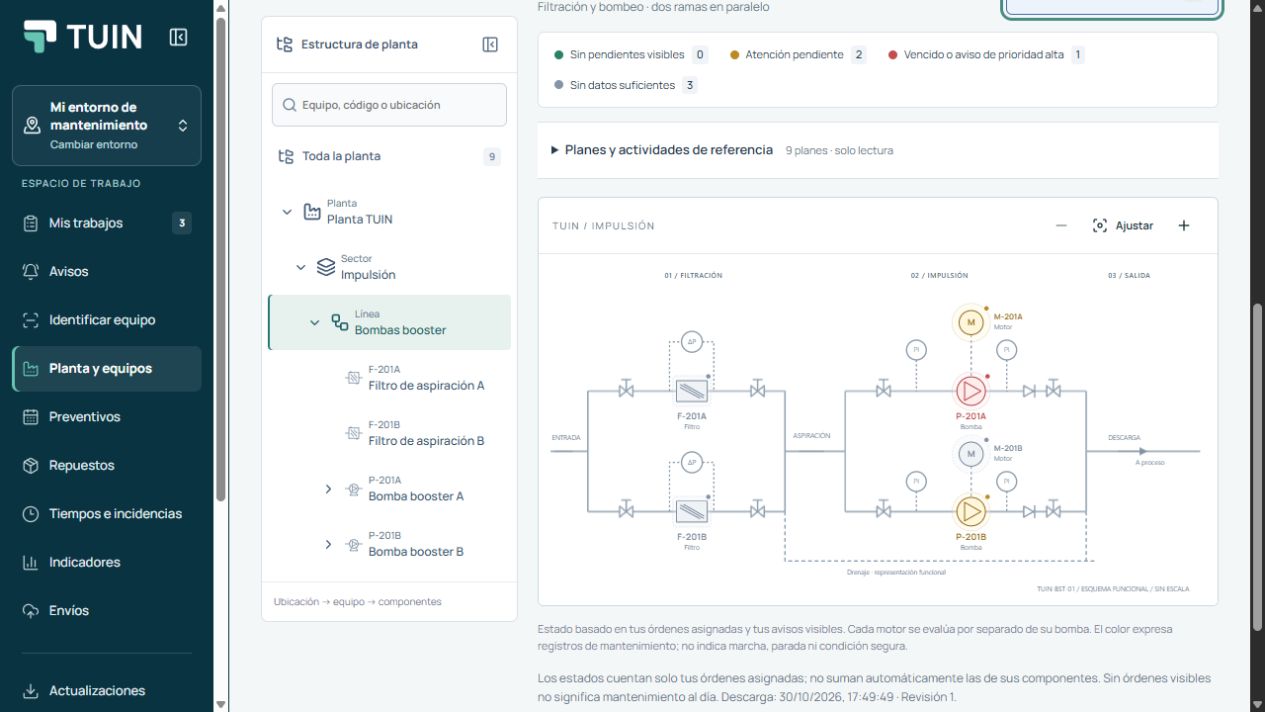
Plant hierarchy and booster pump diagram in TUIN, with the app interface in Spanish
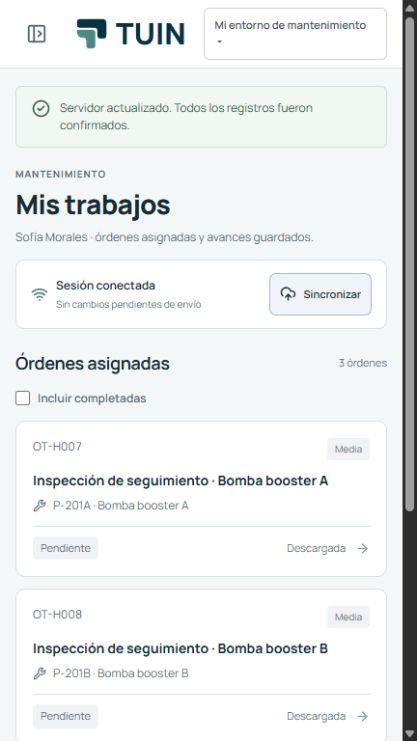
My maintenance jobs in the mobile app, with the app interface in Spanish
The same information.
At your desk and beside the equipment.
PLANNINGEXECUTIONDOCUMENTATIONTRACEABILITYVISUALIZATION

GUIDED WALKTHROUGH · 42 SECONDS

A pump, part by part.

Follow a coupling inspection. Open the work order from the plant diagram, explore the 3D exploded view and record what you find.

Videos show the current Spanish-language app interface. English subtitles are enabled.

Request a demo
TUIN scenes using sample data.Download video · 1.6 MB
Read the walkthrough

The technician locates P-201A in the plant diagram, opens its work order and explores a 98-part reference model. In the coupling activity, the technician selects the flexible element and consults section 6.2.3 of the manual. The wear finding is recorded, the four activities are reviewed and the closeout is saved. The work order and finding are synchronized when connectivity returns.

TWO MORE WAYS TO EXPLORE TUIN

Choose another walkthrough.

PLANT AND EQUIPMENT · 38 SECONDS

From equipment to its work order.

Browse the hierarchy, select the pump and see its tasks, assigned technician, manuals and maintenance history.

TUIN interface in Spanish, using sample data.

Read the walkthrough

The walkthrough starts at the TUIN plant, follows the pumping area and booster pump line, and reaches asset P-201A. Its record shows pending maintenance, the assigned technician, the date and the instructions for work order OT-008. The downloaded manual is available offline. The history brings together completed interventions and reports visible to the current user. The interface uses sample data.

3D LIBRARY · 40 SECONDS

Three assets, part by part.

Explore a planetary gearbox, a check valve and a hydraulic cylinder. Separate their components and examine selected parts.

Animation of TUIN reference models.

Read the walkthrough

These are the reference models included in TUIN. The planetary gearbox has 42 parts, with its sun gear shown separately. The check valve has 11 components, including its closing disc. The hydraulic cylinder represents seven assemblies and allows inspection of the piston. The animations show the assembled and exploded views.

01 / UNDERSTAND YOUR PLANT

The context a task list
cannot give you.

Find equipment in the hierarchy or the diagram. Review its jobs, assigned technicians and history, then open the work order that needs your attention.

TUIN plant hierarchy and booster pump diagram, with the app interface in Spanish
VIEW 01 / PLANT

From plant to equipment. From equipment to work order.

Navigate areas, lines and assets. The diagram shows maintenance status and opens the related work orders.

TUIN interface in Spanish, using sample data.

02 / GET THE WORK DONE

Ready for
the pace of your plant.

For the people who plan maintenance and the technicians who carry it out beside the equipment.

View the Android app
  1. 01

    Plan with equipment in view.

    Assign jobs and technicians. Organize preventive maintenance, instructions and documentation links.

  2. 02

    Take what you need to the job.

    Consult the work order and its manual. Record activities, time, incidents and photos. With your local copy prepared, keep working offline and synchronize later.

  3. 03

    Keep what you learn with the plant.

    Keep a record of who worked on the equipment, what happened and how it was resolved. Review maintenance hours, failures and indicators based on the records entered.

P-201A / BOOSTER PUMP
EQUIPMENT LABELP-201AInformation starts here.

Illustrative workflow. Each equipment label is configured individually.

03 / SEE MORE, ON SITE

Point at the equipment.
Explore its history.

A QR code opens the asset record: work orders, assigned technicians, history and manuals within reach.

Using printed references and a compatible Android device, augmented reality lets you place information and explore 3D models in physical space.

QR identification3D modelsAugmented reality
Try it in a walkthrough

AR requires a compatible device and services. Maintenance information is also available without AR.

A FOUNDATION TO BUILD ON

What keeps
maintenance moving.

  • Users and permissions
  • Preventive maintenance and RCM
  • Spare parts from Excel
  • Time and incidents
  • Equipment history
  • Work orders and printable PDFs

BEFORE YOUR FIRST WALKTHROUGH

A few answers.

Can I use it on a PC or a phone?

Both. The web app provides access and management according to each user’s role. The Android app supports field work on phones and tablets, with camera access, a local copy and AR features on compatible devices.

What happens when there is no connection in the plant?

Prepare your jobs and manuals while connected. You can then consult downloaded information and save progress in the local copy while your access remains valid. Synchronize changes with the server when connectivity returns.

What can I see in a demonstration?

A complete workflow using sample equipment and data: a pump diagram, work orders, assigned technicians, manuals and indicators. We can also show QR identification and the 3D pump in AR on a compatible device.

How do we get started with our plant?

We arrange a demonstration and discuss your equipment, workflow and priorities. With that context, we define the scope of an initial implementation.

THE NEXT STEP IS TO SEE IT WORK

Let’s talk about
your next walkthrough.

Leave your details and we will arrange a demonstration.
See what that workflow could look like with TUIN.

We will contact you at the email address you provide. No subscription or commitment to buy.

Already have an account? Open TUIN ↗